This section guides Speaker Ready Room helpers through the process of uploading a speaker’s presentation file and managing related details.
Important File Requirement
All presentation files must be in PPTX format (PowerPoint). Any video content must be embedded within the PowerPoint file before upload. Standalone MP4 files cannot be accepted.
Step-by-Step Upload Guide
Navigate to the Upload Workspace
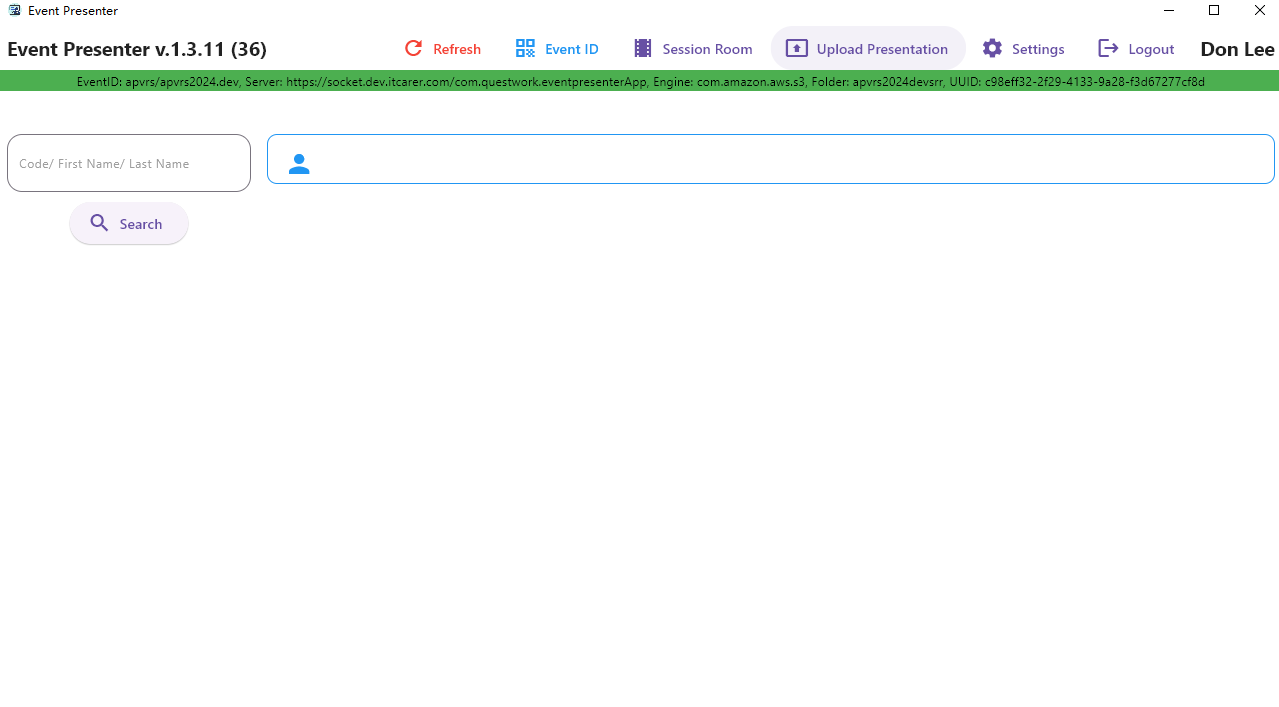
From the main menu bar, select ‘Upload Presentation’.
Locate the Speaker
On the left panel, search for the speaker using their:
- Congress ID (the one in Congress System),
- First name, or Last name.
A list of matching speakers will appear. Select the correct speaker from this list.
Select the Presentation Topic
Once a speaker is selected:
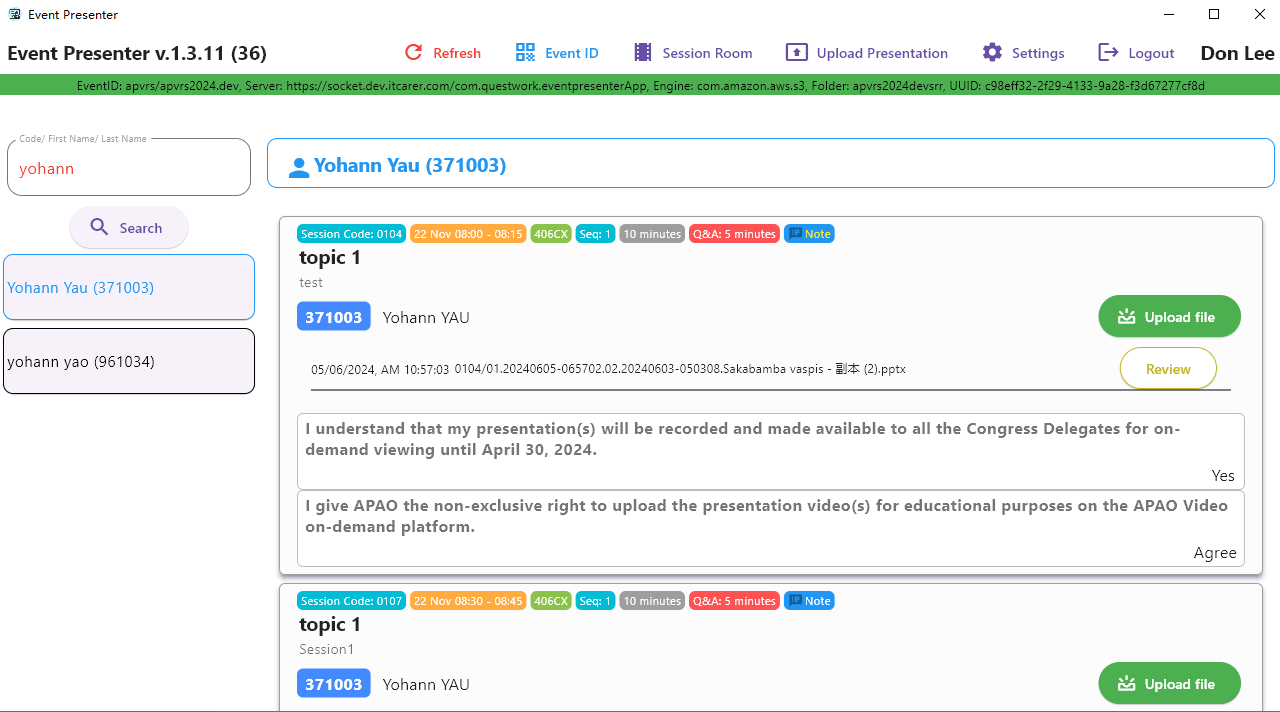
- The right panel will display the speaker’s name and registration code at the top.
- Below that, a list of their assigned presentation topics will appear.
- For each topic, review the details: Session Code, Date/Time, Venue, Presentation Sequence, and allotted times for Presentation and Q&A.
Obtain Speaker Consent
Before uploading, the speaker must answer two mandatory consent questions related to the presentation topic.
- The [Upload] button will only appear after both questions have been answered.
Upload the File
- Most speakers will provide their file on a USB drive. Insert the drive into the computer.
- Click the [Upload] button.
- In the file dialog, navigate to and select the correct PPTX file from the speaker’s USB drive.
- Upon successful upload, the file will be automatically renamed and listed with a confirmation timestamp.
Post-Upload Verification & Instructions
- ALWAYS REVIEW THE FILE: Crucially, remind the speaker to click the [Review] button. Run the slideshow in full-screen mode to verify all content, including embedded videos and animations, works correctly.
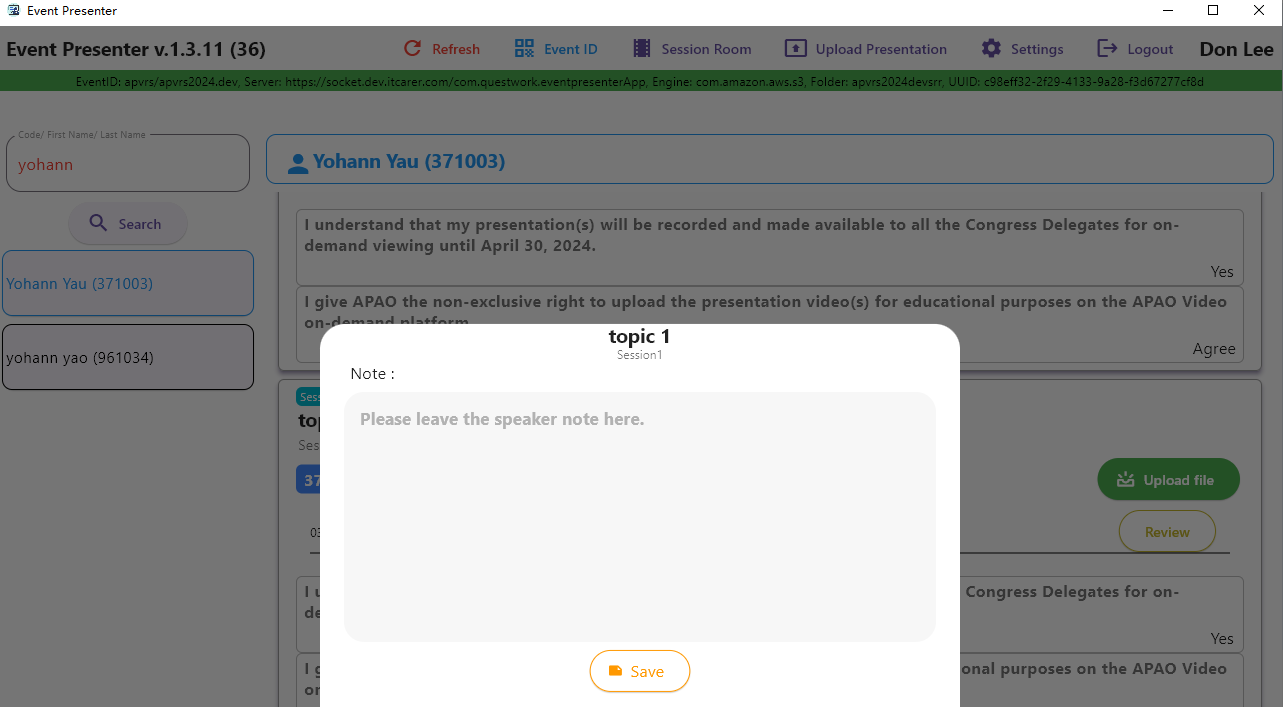
- Add Operator Notes: If the speaker has specific instructions for the session room operator (e.g., “advance slides for me,” “play video on click”), click the [Note] button. A dialog box will open where you can write down these instructions. Click [Confirm] to save them to the topic.
File Editing Instructions for Speakers
If a speaker needs to edit a presentation that has already been uploaded, please follow this process:
- Download: On the topic detail panel, locate and click the [Download] button to save the current version of the PPTX file to the desktop of your local computer.
- Edit: Make any necessary changes to the downloaded PowerPoint file. Ensure all videos remain properly embedded in PPTX format.
- Re-upload: Return to this page and select the relevant topic. Click the [Upload] button again to select and upload your newly edited file. The new file will replace the previous version.