Welcome to Event Presenter. This guide will help you launch the application and log in for the first time.
Enter the Event ID
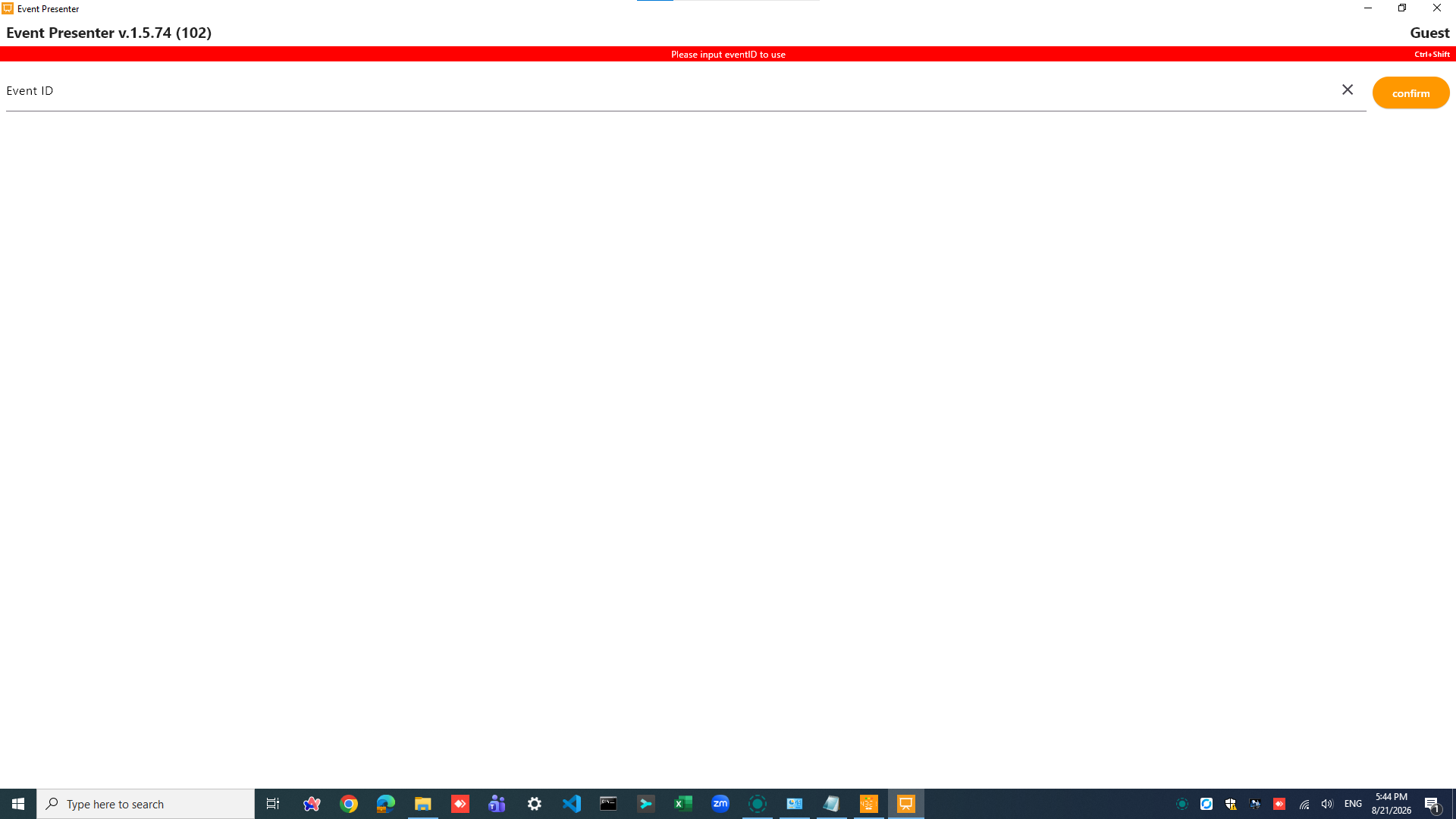
The first time you open the Event Presenter app (on Windows or Mac), you will be prompted to enter a valid Event ID.
- How to get it: Enter or scan the unique Event ID provided by your event administrator.
- If you forget it: Please contact your event administrator.
Do not share Event IDs, QR codes, usernames, passwords, tokens, Device UUIDs, or internal room identifiers in screenshots, notes, or public messages.
Log In to the System
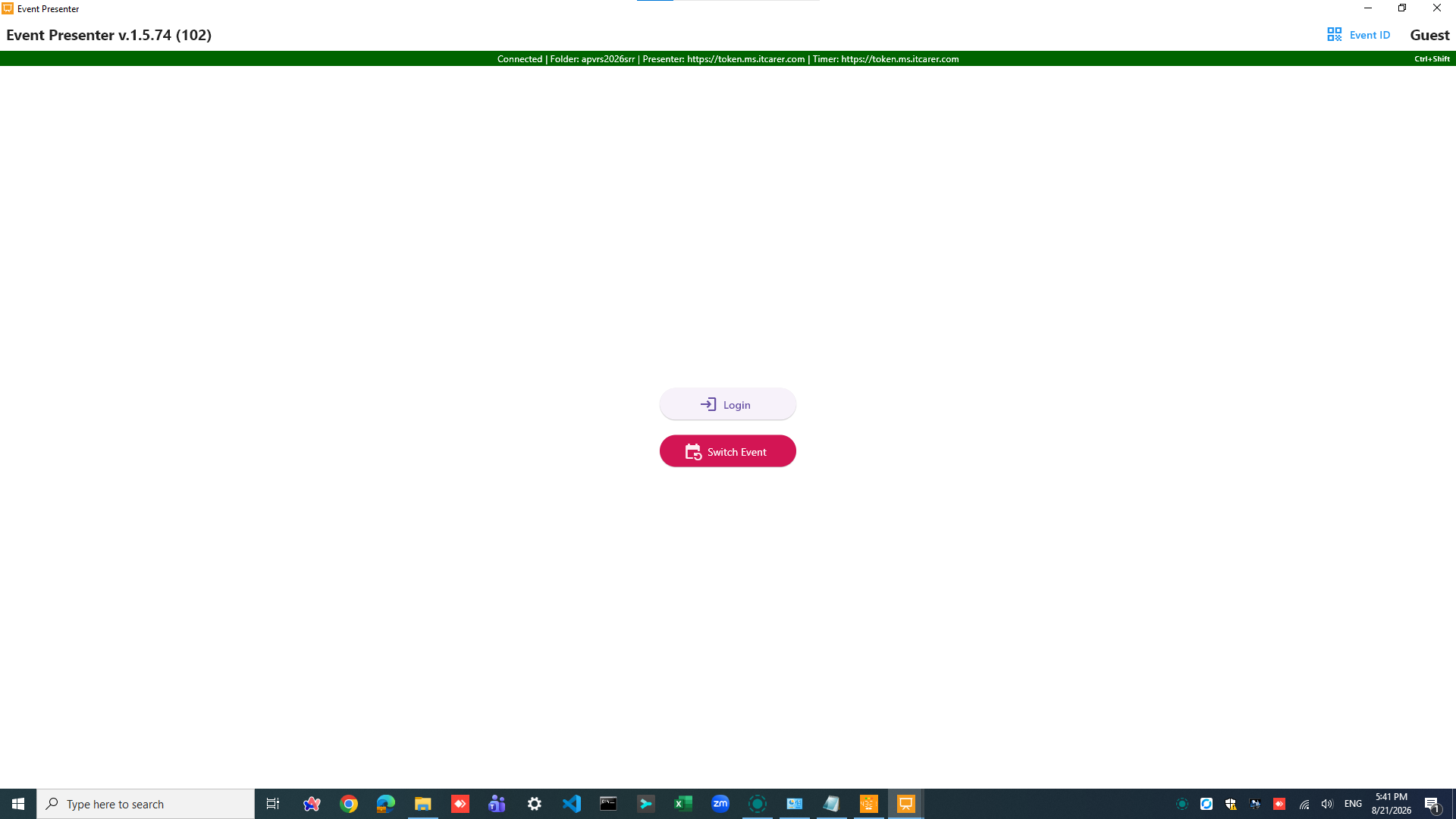
Once a valid Event ID is entered, the application will display the login page.
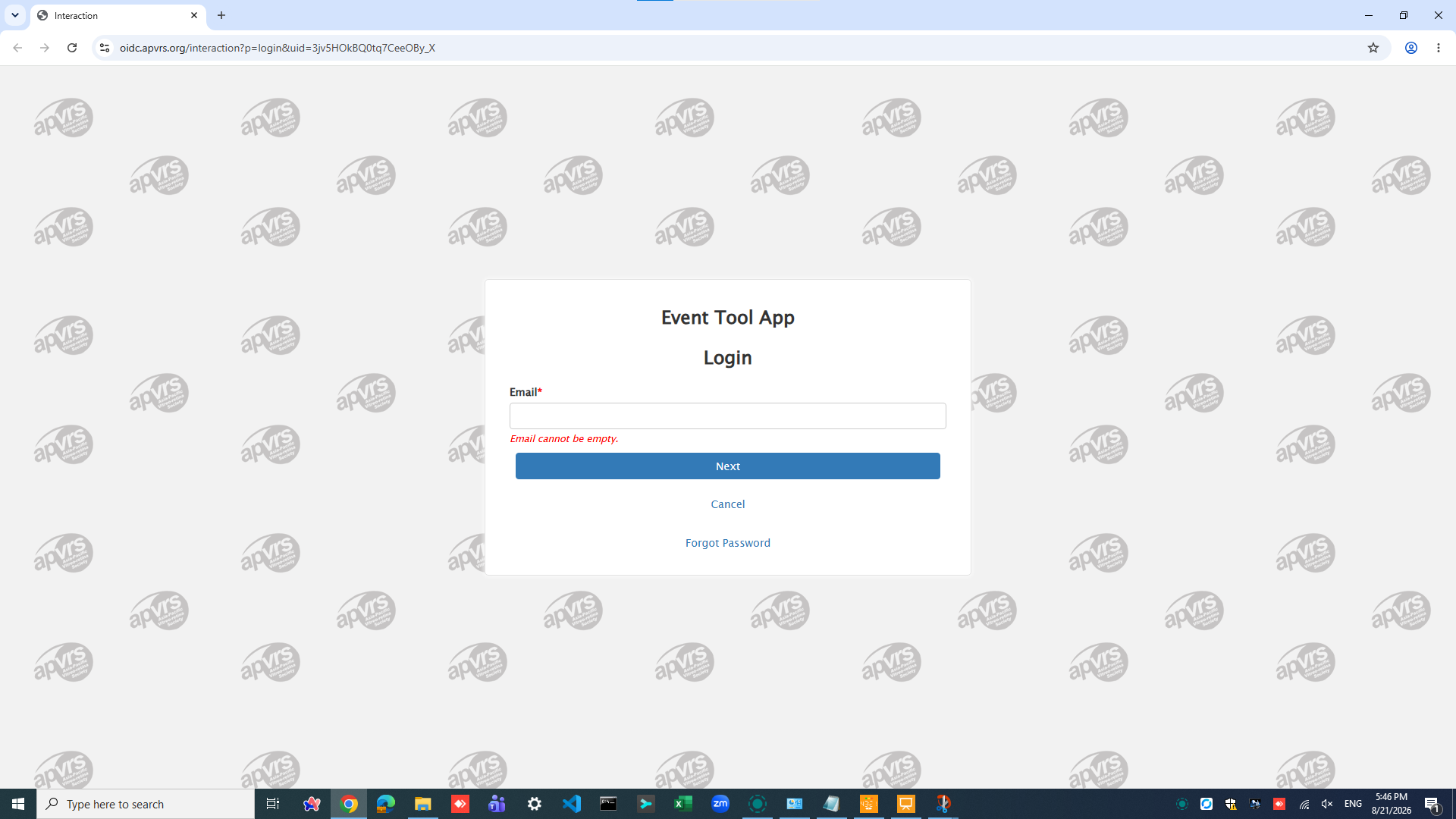
- To log in, please click the “Login” button. This action will open a browser window for authentication.
- Use the credentials below according to your assigned role:
| Role & Responsibilities | Username | Password |
|---|---|---|
| Speaker Ready Room Helper (Upload and manage presentation files) | tools@eventopq.com | Please ask your administrator for the password. |
| Session Room Operator (Control and play presentations during sessions) | tools@eventopq.com | Please ask your administrator for the password. |
Understand the Main Screen & Status Bar
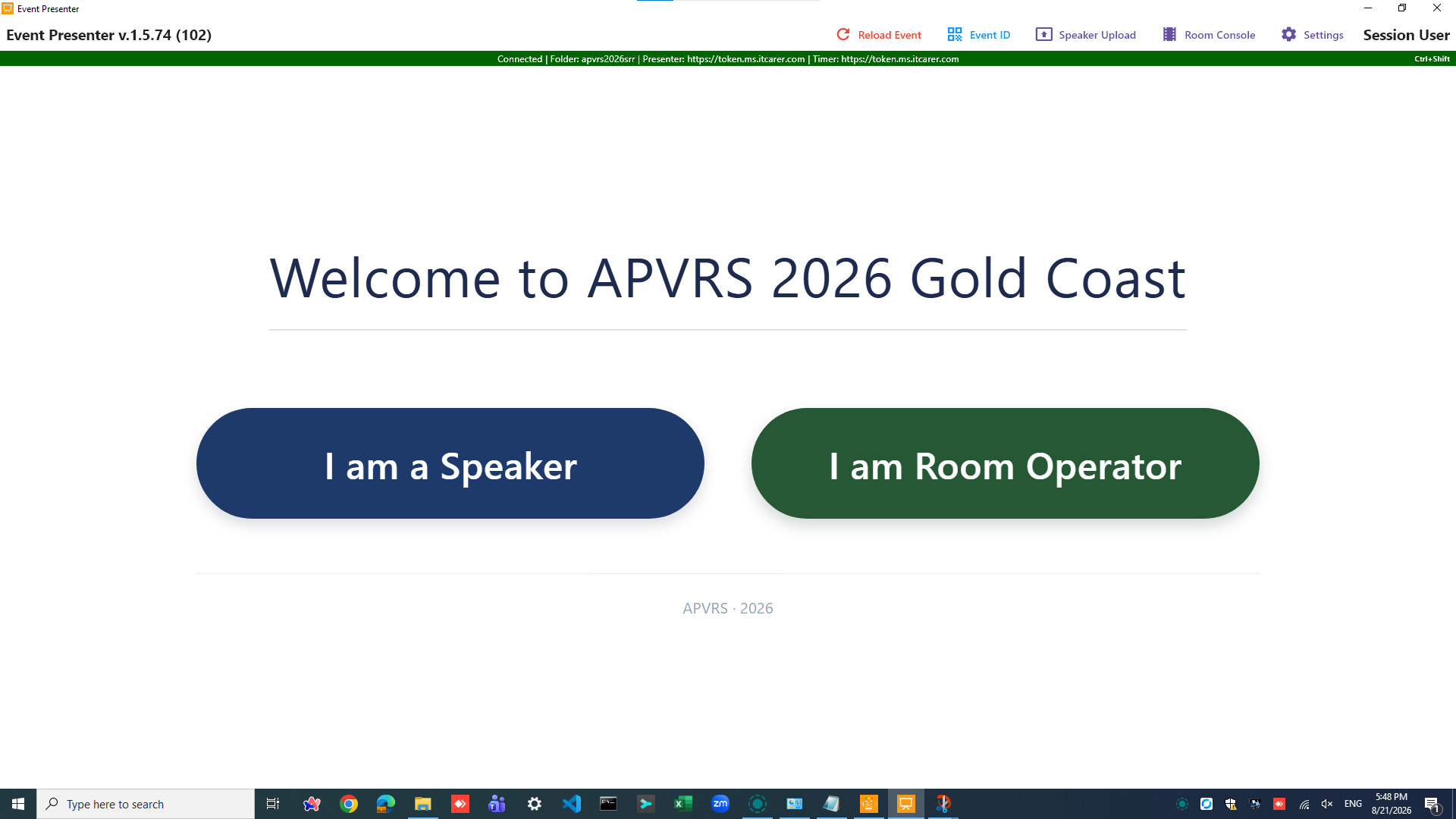
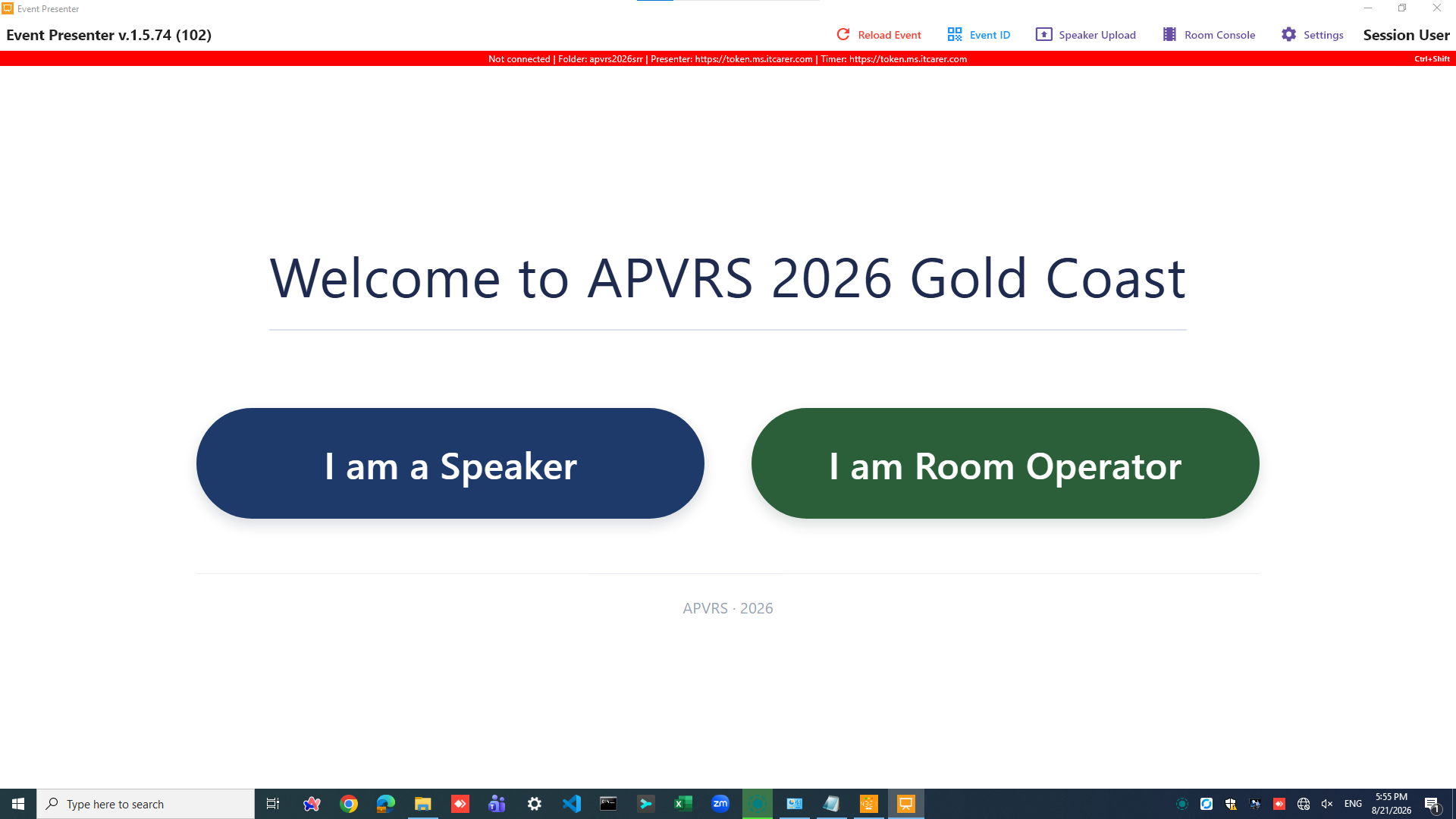
After successfully logging in, the application’s main screen will appear.
- Top Menu Bar: Select your primary workspace from the menu:
- Speaker Upload: For speaker ready room helpers.
- Room Console: For session room operators.
- Status Bar (Located below the top menu): This bar provides essential system information.
Status Bar Indicators:
- Connection Status: A colored indicator shows your connection to the server.
- GREEN: Connected. The system is functioning normally.
- RED: Disconnected. The network connection is disrupted. Please inform the IT system administrator immediately.
- System Information: Displays your current Target Folder, connected Presenter Server, and connected Timer Server.
Next >> Speaker Upload
Next >> Room Console