The Event Speaker Timer is a dedicated tool that helps session room operators manage presentation timing seamlessly. It syncs the scheduled duration for each topic and provides a clear display of the remaining time for the speaker and audience.
Core Concept: Two Modes
The timer operates in two distinct modes, typically on separate screens:
- Console (Controller): This is the operator’s control panel, displayed on a secondary device (a second computer or mobile device). It contains all buttons to start, pause, and reset the timer.
- Display (Projection): This view-only screen is shown to the speaker and audience on the main projector. It displays only the countdown, with no control buttons.
⚠️ Key Operational Note: During a session, the presentation computer’s screen is fully occupied by the speaker’s slideshow. You cannot control the timer from this screen. A second device (another computer or a mobile phone) must be used as the Console.
Setup Guide for Session Room Operators
Follow these steps to set up and use the timer for a session:
Step 1: Install the Timer App
- Install the “Event Speaker Timer” application on all computers in the session room control panel and on any mobile device you plan to use for control.
- Download Links:
- Windows: Please refer to the official Event Speaker Timer Installation page.
- iOS & Android: Search for “Event Speaker Timer” in the Apple App Store or Google Play Store.
Step 2: Configure the Timer in the Session Room
- On the presentation computer, open the target session in the Session Room module of Event Presenter.
- Open Two Timer Instances on the Presentation Computer:
- Launch the Event Speaker Timer app twice.
- Set one instance to Display Mode (this will be shown to the audience).
- Set the other instance to Console Mode.
- Set Up Your Control Device:
- On a second computer (or a mobile device), open the Event Speaker Timer app in Console Mode. You will use this device to control the timer during the slideshow.
- Sync All Devices:
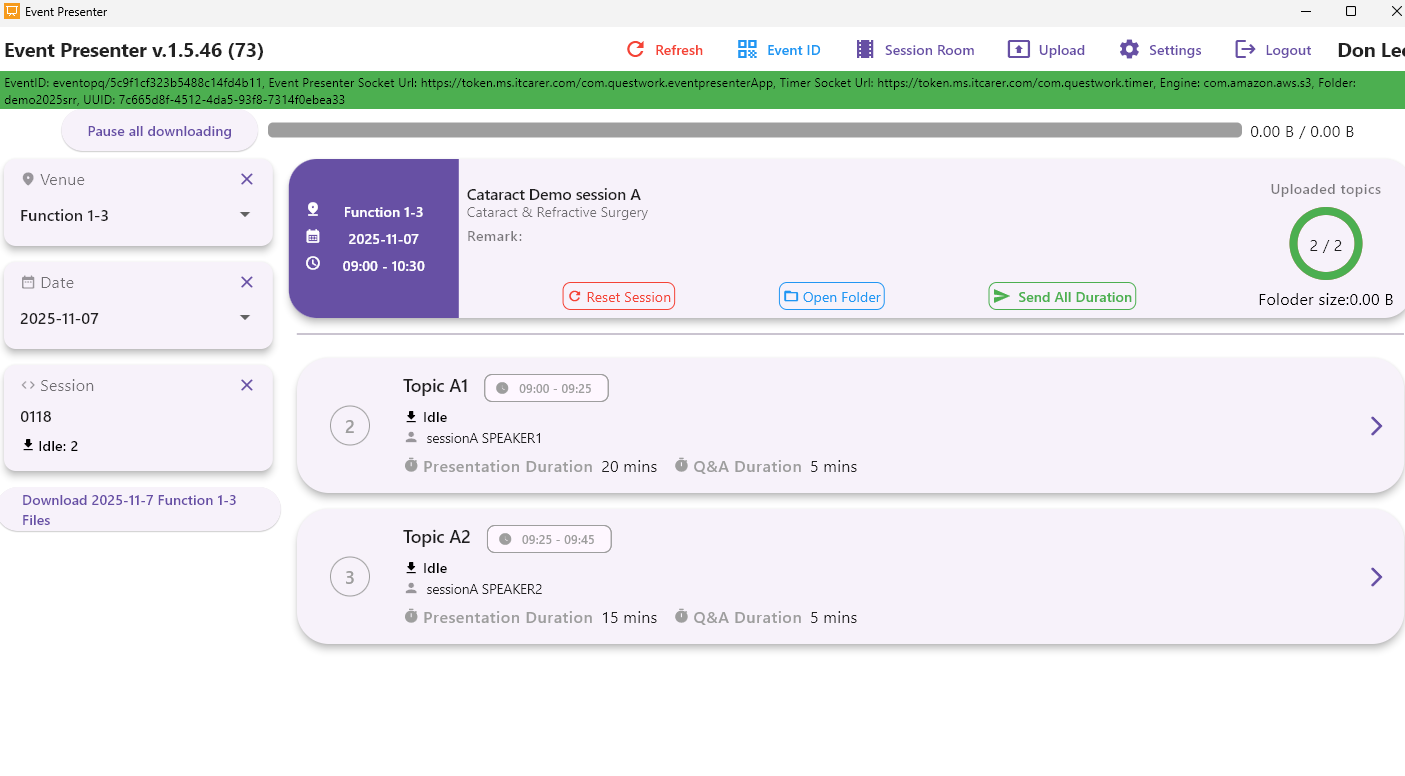
- On the presentation computer within Event Presenter, find the timer panel for your session.
- Follow the steps on the Set up Event Speaker Timer page to connect all timer instances. This involves ensuring all devices are on the same network and entering the same room code.
- Push the session’s topic durations from Event Presenter to the timer.
- Verify the preset list on the timer console shows all durations in the correct order.
Step 3: Operate the Timer During the Session
- Before a presentation, ensure your control device (second computer/mobile) is active and showing the correct topic/duration.
- When the speaker begins, press Start on the console on the second computer/ mobile device.
- The countdown will appear on the Display Mode screen (speaker’s presenter view and/or main projector).
- Use the Pause or Reset functions on your console as needed during Q&A or interruptions.
For Comprehensive Instructions
Please read the full Event Speaker Timer Guideline for advanced features, troubleshooting, and best practices.