This guide explains how to use the Event Presenter Room Console — the primary screen for selecting a date, venue, and session; reviewing the topic sequence; playing presentation files; managing Holding Slide and Speaker Launch Window controls; synchronizing presentation durations with the 4321 Timer; and using Room Console settings and Hotkeys.
For room layout, AV signal routing, recording, advertising, music, backup takeover, live cues, and event-specific operating cues, follow the Congress-specific Session Room Operation Manual for your event.
Room Console Overview
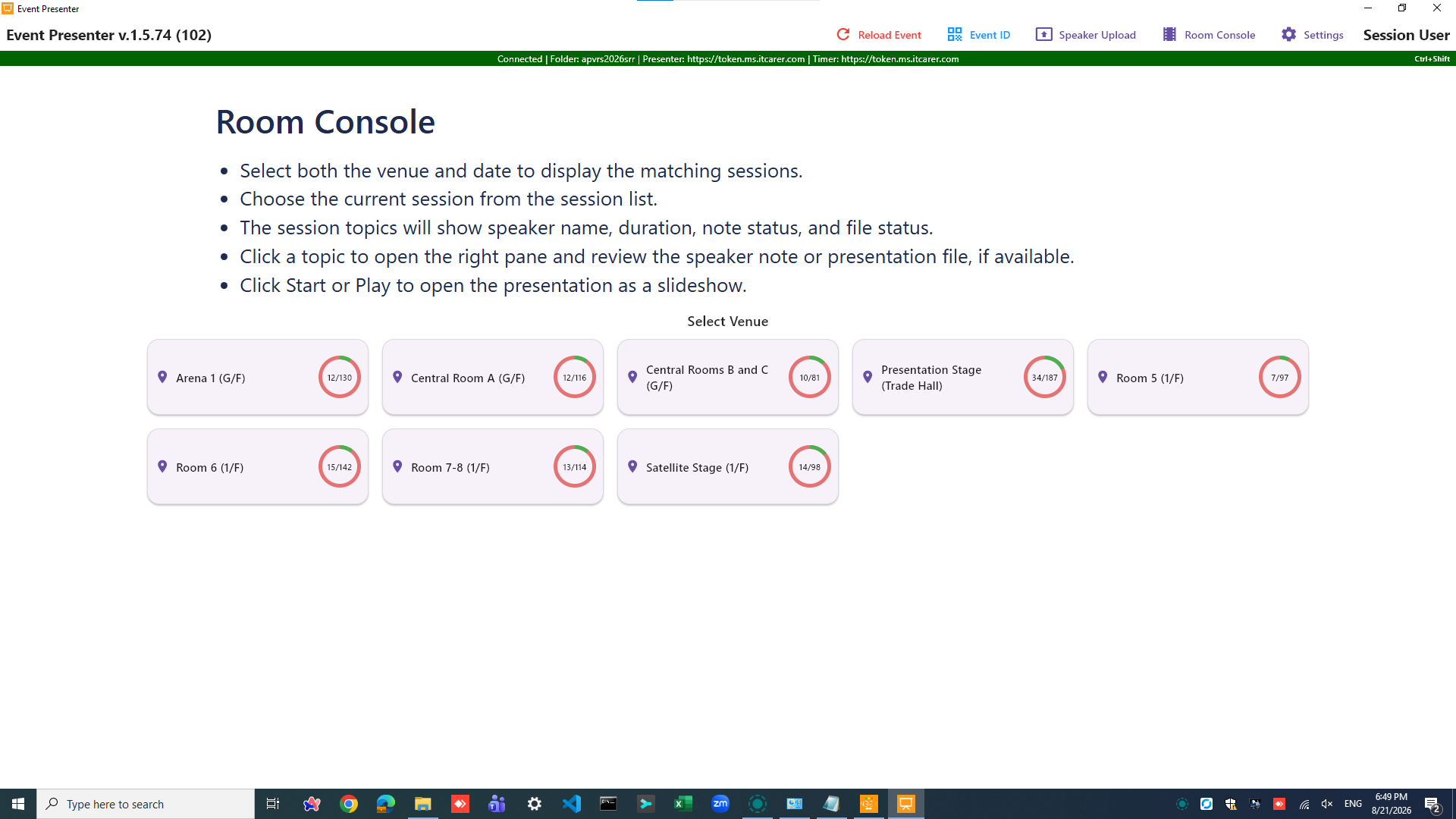
Click the “I am Room Operator” in the home page or “Room Console” on the menu bar to enter the Room Console page. Please read the on screen instructions carefully.
Room Console is the main operator screen. Use it to:
- Select the scheduled Venue and Date.
- Choose the target Session from the session list.
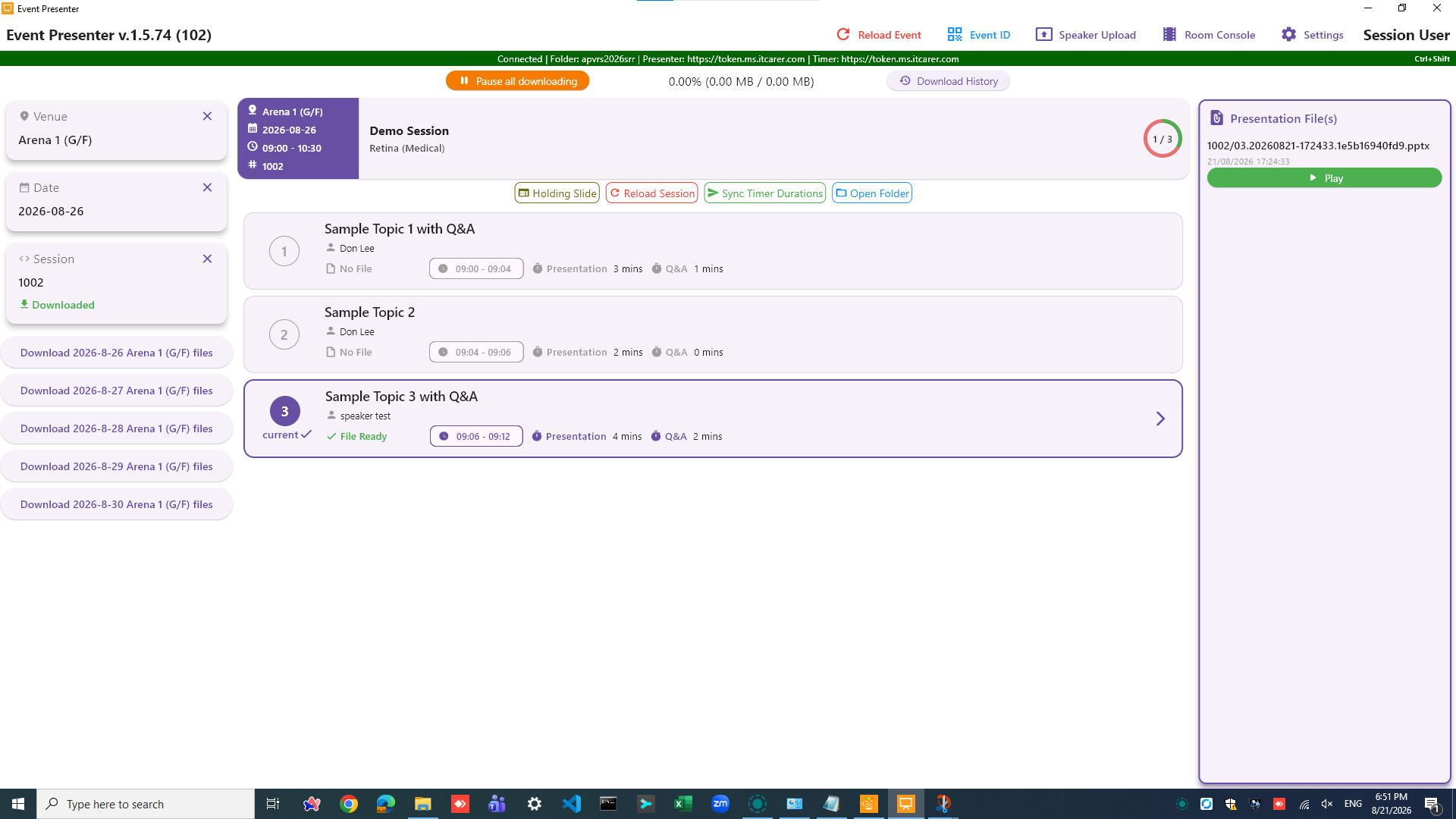
- Review the selected-session summary (time, code, session theme, chairs, venue).
- View the ordered presentations, each with speaker/topic details, duration, uploaded-file status, and operator notes.
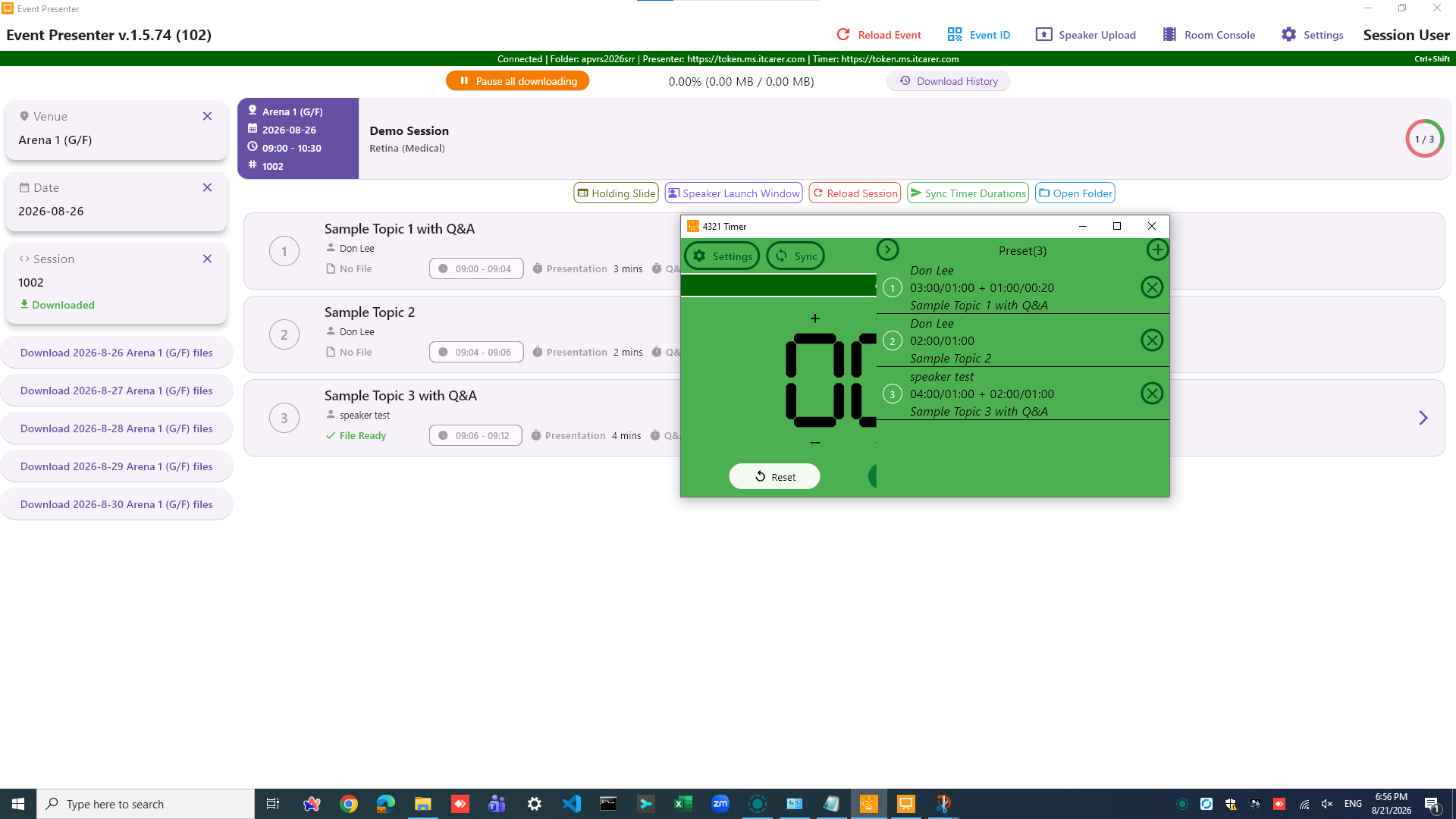
- Access action buttons: Play, Resume, Holding Slide, Speaker Launch Window, Reload Session, Sync Timer Durations, and Open Folder.
Select and Review a Session
- Select the Venue or room.
- Select the schedule Date.
- Select the target Session.
- Check the session summary against the expected programme.
- Review the presentation sequence and speaker details.
- Click Reload Session will refresh the current session data, triggers automatic file downloads for the current session.

Preview Presentation Files before Session Starts
- Expand each topic and read any operator notes, if any, on the right pane.
- Check all presentation files are available and playable. Make sure all embedded video(s) play back correctly.
- Resolve any failed downloads by clicking the [RESUME] button. If the problem persists, please take a screenshot and contact the support team.
- Use Open Folder to locate downloaded files on the computer, if needed.
The Play button may lock briefly while PowerPoint opens — this prevents accidental repeated launches.
Holding Slide
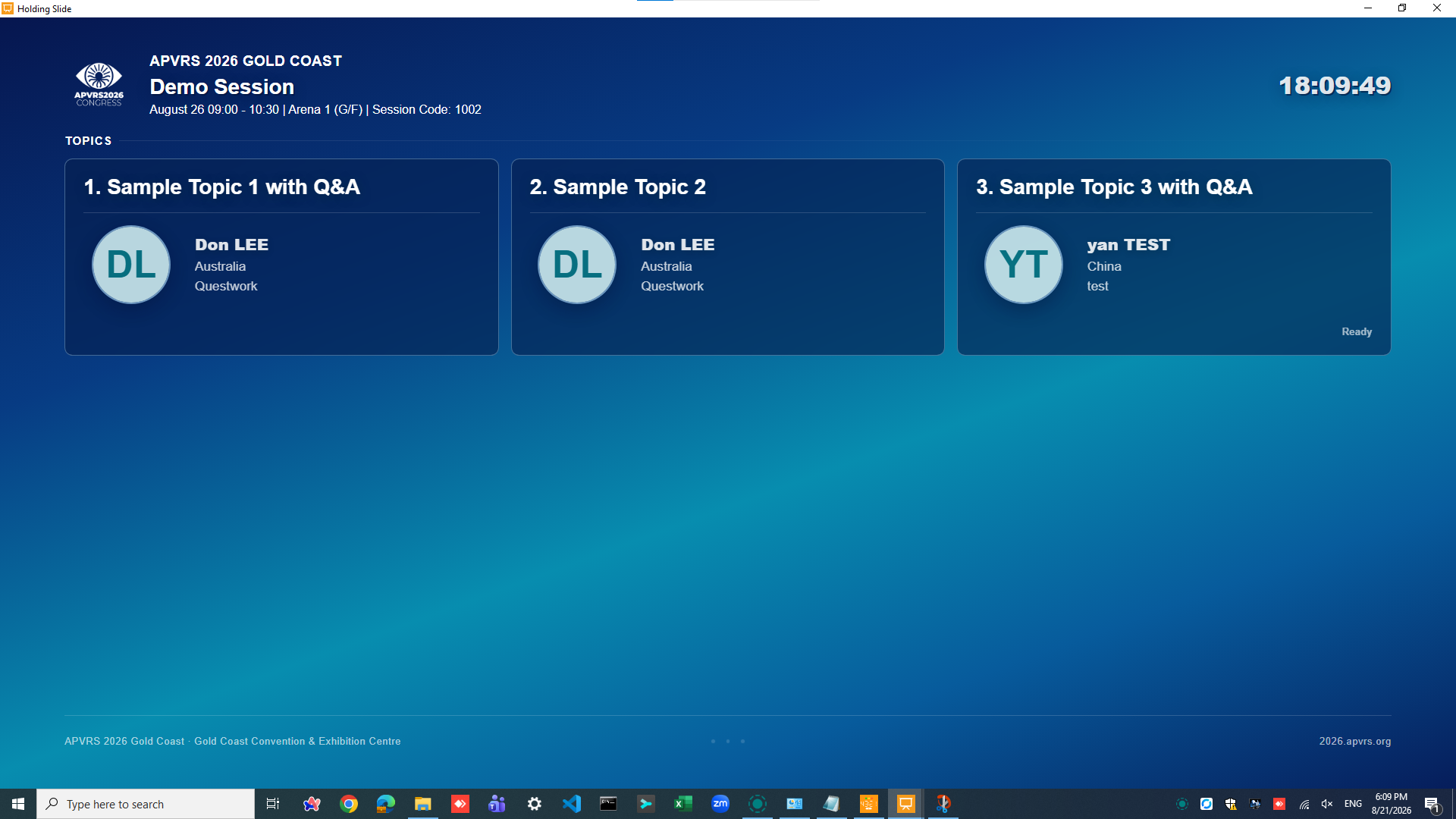
Holding Slide shows session or speaker/topic information between presentations.
- Open Holding Slide from Room Console before the session starts.
- Drag the Holding Slide window to the main presentation screen and use the Hotkey (<modifier> + T) to toggle it in full-screen mode.
- Navigate using preset Hotkeys: previous topic, next topic, or session overview.
- Use the Hotkey to toggle between full-screen display and visible window controls of Holding Slide.
- Verify the window is visible and functioning before go live.
Speaker Launch Window
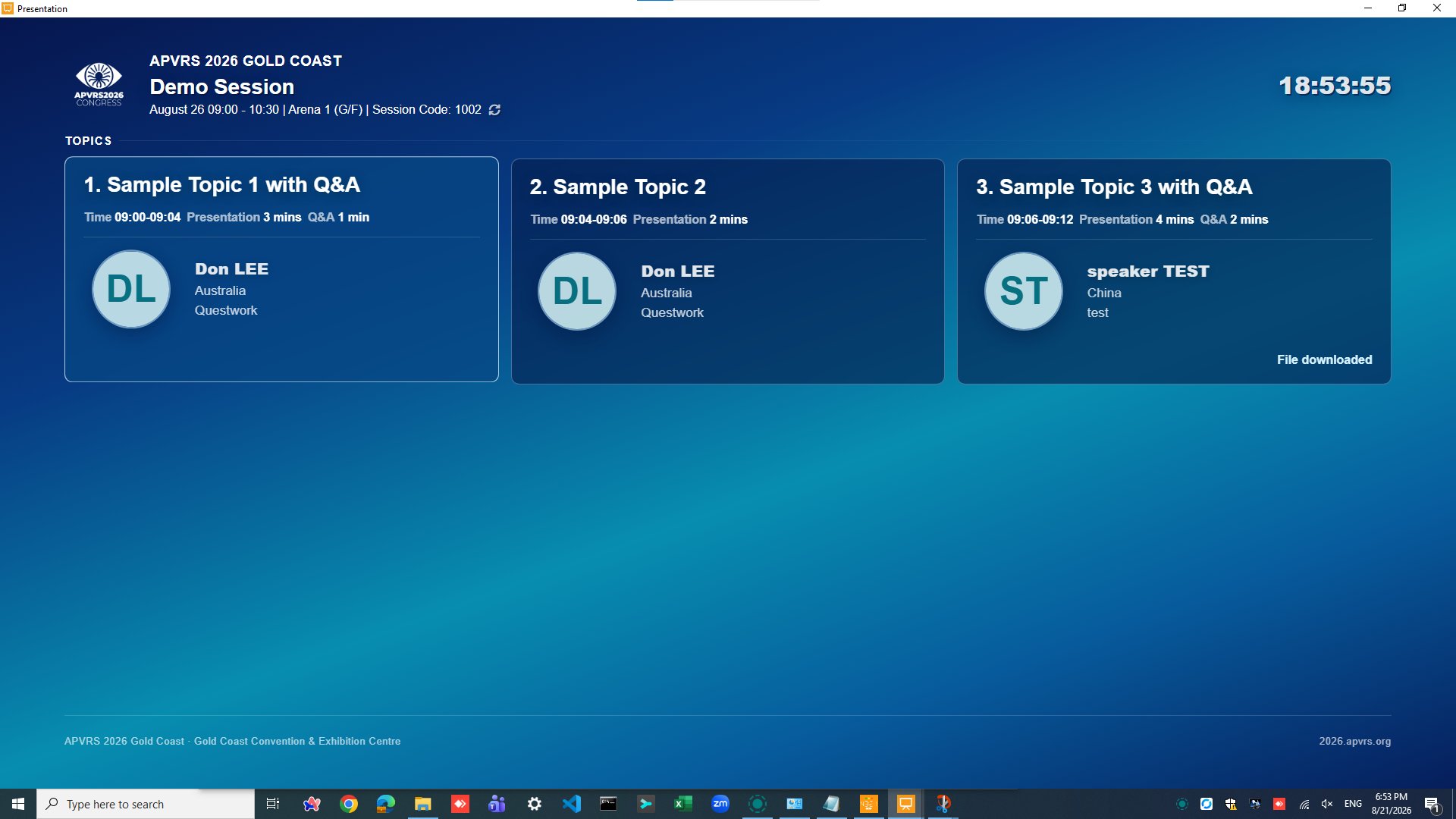
Speaker Launch Window is an optional speaker-facing presentation launch tool. Use it ONLY when the event Organizer requires it.
- Open Speaker Launch Window from Room Console before the session starts.
- Drag the Speaker Launch Window to the main presentation screen and use the Hotkey (<modifier> + T) to toggle it in full-screen mode.
- Use it to launch a slideshow by clicking the corresponding presentation.
- ONLY presentation with ‘File downloaded‘ indicator has the presentation file ready to launch.
- Use the Hotkey to toggle between full-screen display and visible window controls of Speaker Launch Window.
Synchronize Durations with 4321 Timer
- Confirm the selected session is the correct one for timer sync.
- Before syncing, open the 4321 Timer app on both the primary and backup PCs and:-
- ensure they are in Console Mode
- ensure they are connected to the same venue of the current session.
- Click Sync Timer Durations.
- Review 4321 Timer Console and verify the received presets match the session’s presentations.
If Q&A duration is configured, 4321 Timer will automatically start the Q&A countdown when presentation time reaches zero.
If presets do not appear on any 4321 Timer after syncing, please do the followings:
- verify that 4321 Timer is in Console Mode
- confirm the correct venue selection
- check network connectivity
- sync again.
If the problem persists, take a screenshot and contact the support team.
During a Live Session
- Make sure the Holding Slide is displaying the current Topic and Speaker biography.
- Play the current presentation file via Room Console.
- Make sure the slideshow is displayed on the main presentation screen and presenter view is displayed on the podium.
- Set the timer duration corresponding to the current presentation.
- Make sure the timer is visible on top of the presenter view.
- Start the timer countdown when the speaker starts presenting.
- Advance the Holding Slide to the next presentation during the current presentation.
- After the current presentation ends
- close the current PowerPoint slideshow in order to reveal the Holding Slide of the next presentation.
- set the timer according to the next presentation.
- Open the next presentation file from the next presentation.
- If in doubt at any point, click [Reload Session] — this refreshes the current session data, triggers automatic file downloads for any newly uploaded presentations, and ensures you are working with the latest schedule and topic information.
Live cues, and speaker changeover are event-specific — refer to your event’s Session Room Operation Manual for these details. For presentation sequence, duration adjustments, or any on-the-fly changes during the session, always follow the Session Chair’s instructions.
Hotkeys
Hotkeys are system-wide settings. The Hotkey modifier is configurable via menu > Settings. Default is Ctrl+Shift.
- <modifier> + Left Arrow: previous topic/speaker (Holding Slide).
- <modifier> + Right Arrow: next topic/speaker (Holding Slide).
- <modifier> + Up Arrow: return Holding Slide to session overview.
- <modifier> + T: toggle Holding Slide / Speaker Launch Window between full-screen and window controls.
Event Presenter Hotkeys do not control 4321 Timer — use 4321 Timer Hotkeys for timer control.

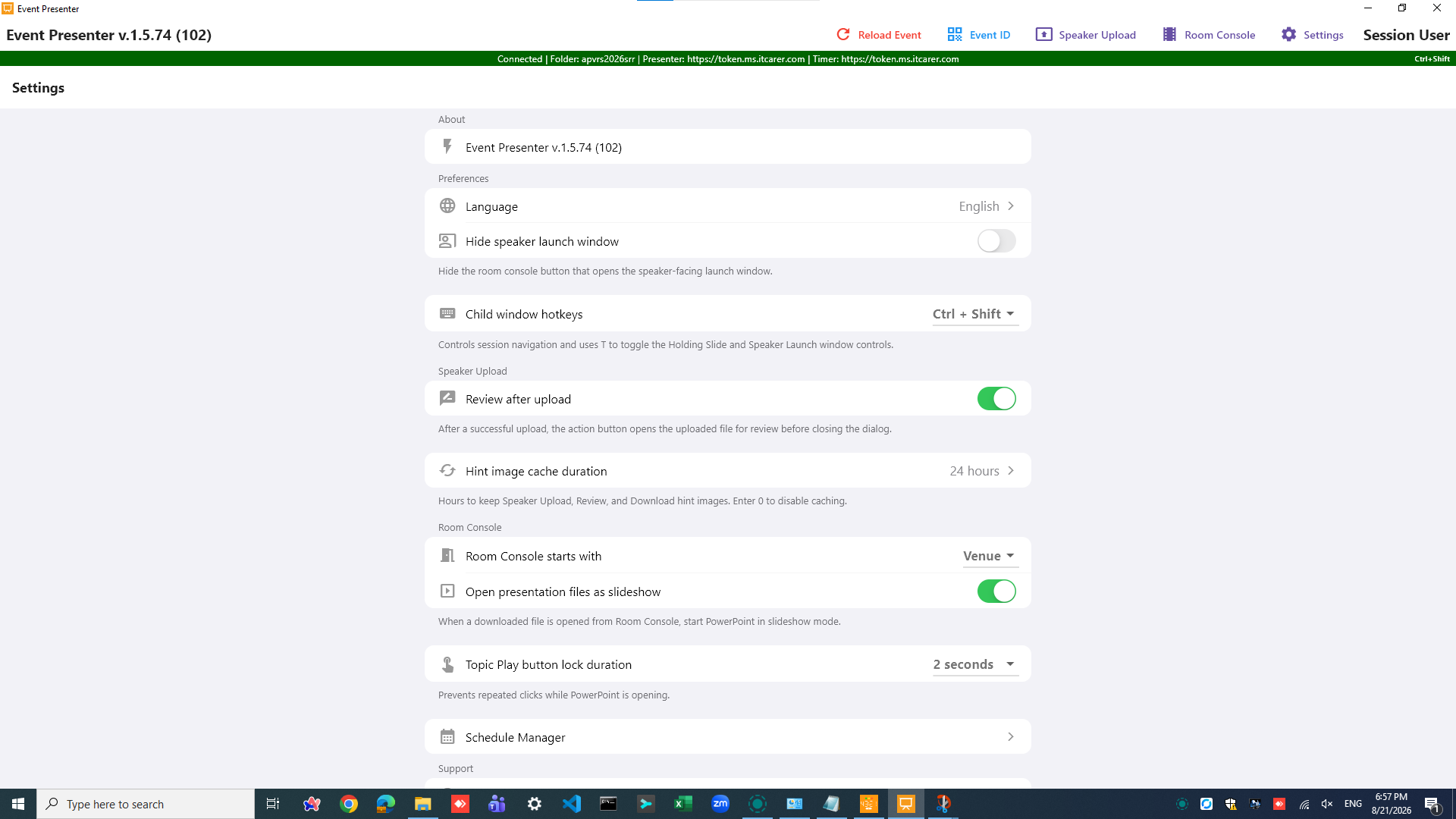
Room Console Settings
- Hide speaker launch window: shows or hides the Speaker Launch Window from the Room Console workflow. Default: Hidden.
- Child window hotkeys: selects the modifier key (Ctrl+Shift or Ctrl+Alt) used for Holding Slide and Speaker Launch Window Hotkeys. Default: Ctrl+Shift.
- Review after upload: controls the post-upload review behavior. When set to Review (default), a [Review] button appears after upload — clicking it runs the slideshow in full-screen mode for the speaker to verify their presentation. When set to Popup, a popup window with a [Close] button appears instead.
- Room Console starts with: chooses whether Venue or Date appears as the first selection step. Default: Venue.
- Open presentation files as slideshow: determines whether files open directly in slideshow mode where supported. Default: Slideshow.
- Topic Play button lock duration: sets a short delay (in seconds) after opening a presentation to prevent accidental repeated clicks. Default: 2 seconds.
- Language, Help, and Logout: standard operator actions for changing interface language, accessing help documentation, and signing out.
Troubleshooting
- Connection status is unhealthy: wait a few moments for the connection to recover automatically. If it does not restore within a reasonable time, contact network support before relying on any live features such as file downloads or timer sync.
- Date, venue, session, topic, or file is missing: confirm that the correct event (Production vs Testing) is selected, then click Reload Session to refresh all session data from the server.
- File download is pending or failed: check your network connection and click the Reload Session again. If the issue persists, contact platform support.
- PowerPoint opens incorrectly or does not launch: close the file or the blank PowerPoint window, verify that you have selected the correct presentation from the topic list, and reopen it. If PowerPoint itself is unresponsive, restart the application.
- PowerPoint OLE or Trust Center issue: open Windows File Explorer and paste %USERPROFILE%\Documents\eventpresenter into the address bar, then press Enter to open the Event Presenter presentation root folder. Copy the full folder path from the File Explorer address bar. In PowerPoint, go to File → Options → Trust Center → Trust Center Settings… → Trusted Locations → Add new location…, then paste the copied folder path as the trusted location. Tick Subfolders of this location are also trusted, then click OK.
- Holding Slide or Speaker Launch Window is missing or hard to control: press the presentation-mode Hotkey (<modifier> + T) to restore window controls. If the window is still not visible, close and re-open the Event Presenter app.
- Timer durations do not appear in 4321 Timer Console after syncing: ensure the 4321 Timer app is open and in Console Mode, confirm the correct venue/room is selected, check network connectivity, then click Sync Timer Durations again.
Whenever there is any problem that could not be resolved immediately, please take a screenshot and contact the support team.