The 4321 Timer, formerly known as Event Speaker Timer, is a dedicated tool that helps session room operators manage presentation timing seamlessly. It syncs the scheduled duration for each topic and provides a clear display of the remaining time for the speaker and audience.
Core Concept: Two Modes
The timer operates in two distinct modes, typically on separate screens:
- Console (Controller): This is the operator’s control panel, used on a primary and/or secondary device (a second computer or mobile device). It contains all buttons to start, pause, and reset the timer.
- Display (Projection): This view-only screen is shown to the speaker, chair and audience on the main projector. It displays only the countdown, with no control buttons.
⚠️ Key Operational Note: During a live session, the presentation computer’s screen is fully occupied by the speaker’s slideshow. To control the timer without interrupting the presentation, use the 4321 Timer Hotkeys on the same computer. Alternatively, you may use a second device (such as another computer or a mobile phone) as a separate Console for timer control — this is optional but supported.
Setup Guide for Session Room Operators
Follow these steps to set up and use the timer for a session:
Step 1: Install the Timer App
- Install the “Event Speaker Timer” application on all computers in the session room control panel and on any mobile device you plan to use for control.
- Download Links:
- Windows: Please refer to the official 4321 Timer Installation page.
- iOS & Android: Search for “4321 Timer” in the Apple App Store or Google Play Store.
Step 2: Configure the Timer in the Session Room
- On the presentation computer, open the target session in the Session Room module of Event Presenter.
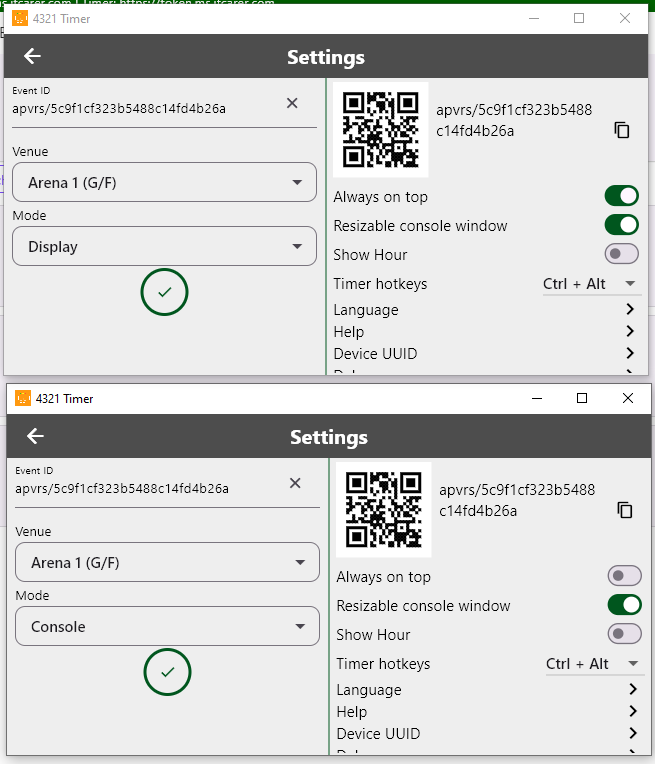
- Open Two Timer Instances on the Presentation Computer (and Backup Computer, if any):
- Launch the 4321 Timer app twice.
- Set one instance to Display Mode (this will be shown on the presenter view for speaker).
- Set the other instance to Console Mode.
- Set Up Your Control Device (optional):
- On a second computer (or a mobile device), open the 4321 Timer app in Console Mode. You can use this device to control the timer during the slideshow.
- Sync All Devices:
- On the presentation computer within Event Presenter, find the correct session.
- Follow the steps on the Setup 4321 Timer page to connect all timer instances. This involves ensuring all devices are on the same network and entering the same room.
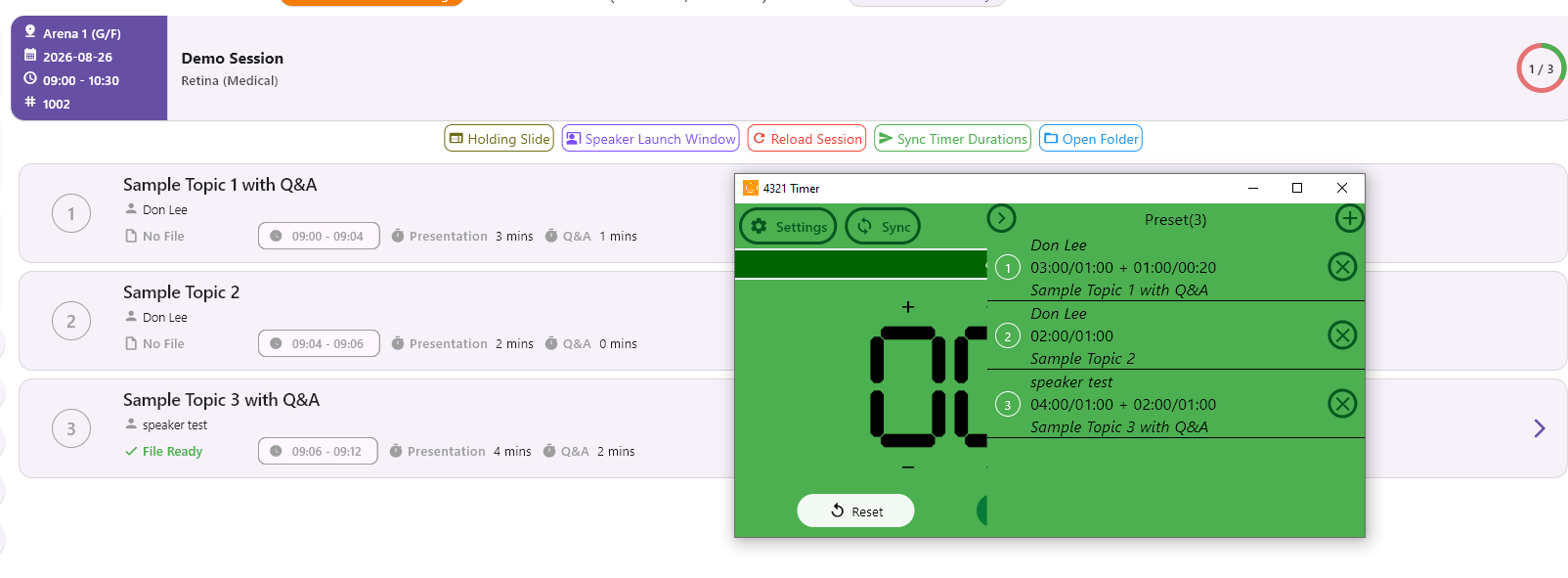
- Push the session’s topic durations from Event Presenter to the timer.
- Verify the preset list on the timer console shows all durations in the correct order.
Step 3: Operate the Timer During the Session
- Before a presentation, ensure your control device (primary computer and/or second computer/mobile device) is connected and showing the correct topic/duration.
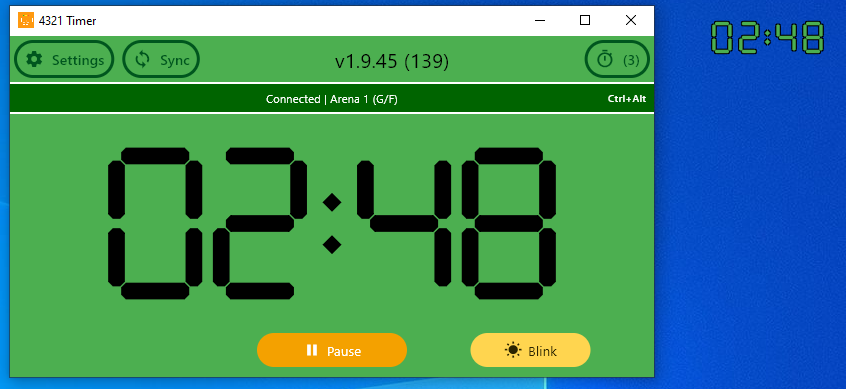
- When the speaker begins, Start the timer.
- The countdown will appear on the Display Mode screen (speaker’s presenter view and/or main projector).
- Use the Pause or Reset functions as needed during Q&A or interruptions.
For Comprehensive Instructions
Please read the full 4321 Timer Guideline for advanced features, troubleshooting, and best practices.